

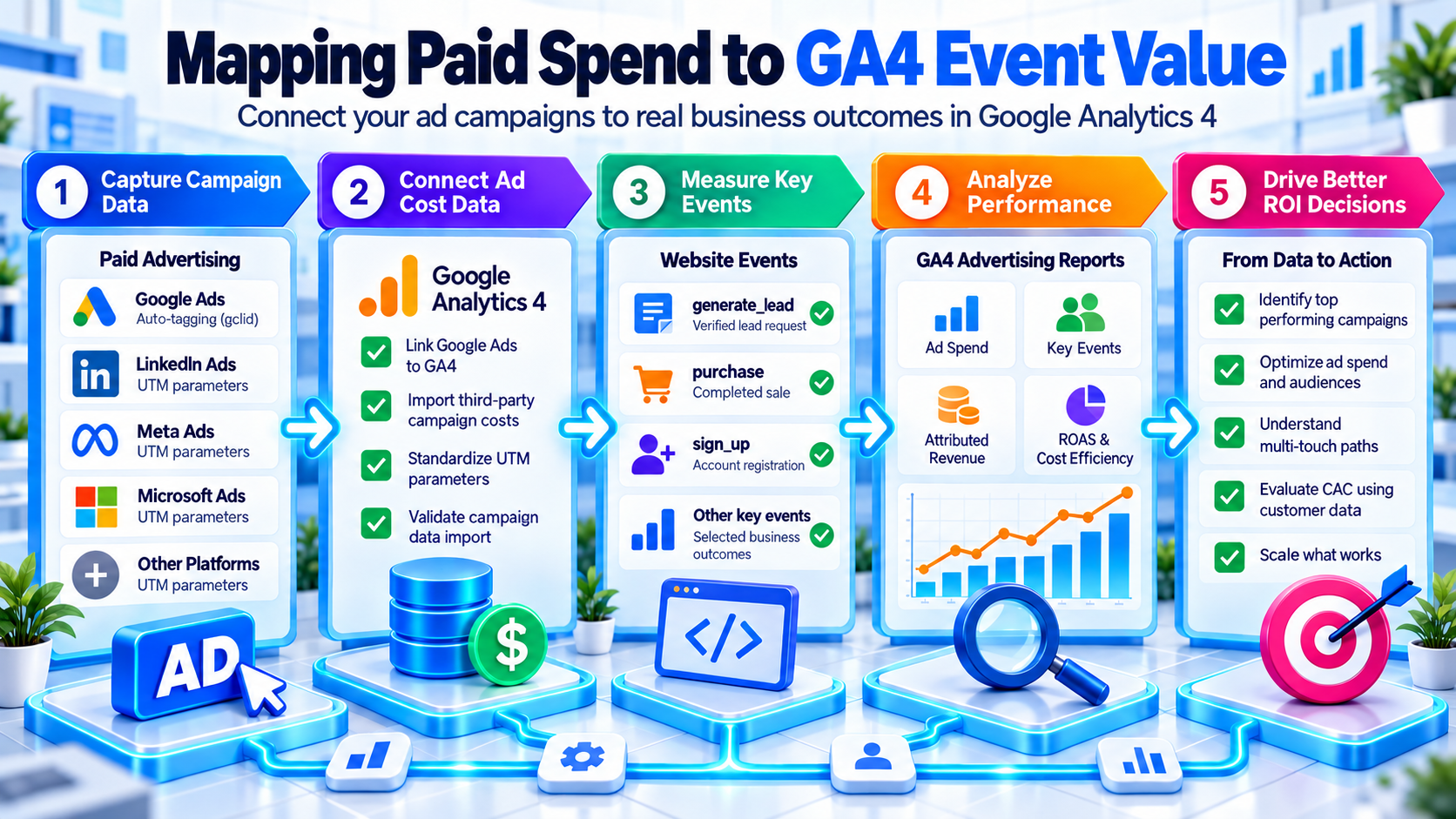
Advertising platforms can report impressions, clicks, and costs with considerable precision. Determining whether that spending produced valuable business outcomes is more complicated. A campaign with inexpensive clicks may generate few qualified prospects, while another with a higher cost per click may attract customers who deliver substantially more revenue.
Google Analytics 4 (GA4) can help connect advertising activity with measured website behavior and important business events. However, accurate reporting requires more than linking an advertising account to an Analytics property.
Campaign identifiers must be collected consistently. Important events must represent verified outcomes. Advertising costs must be available at an appropriate reporting level, and attribution settings must be understood before results are interpreted.
This guide explains how to establish those connections, use the GA4 Advertising workspace, evaluate cross-channel performance, and distinguish meaningful return on ad spend from preliminary engagement metrics.
It builds on the event implementation principles covered in The Developer’s Guide to GA4 Event Schemas, and the acquisition-analysis limitations explored in Linking Keyword Queries to Conversion Actions in GA4.
1. Understanding the Relationship Between Advertising Spend and GA4 Events
Advertising performance involves several distinct measurements that should not be treated as interchangeable.
- Advertising delivery: Impressions, clicks, campaign spending, and other measurements recorded by the advertising platform.
- Website behavior: Sessions, engagement, page views, and interaction events measured by GA4.
- Business outcomes: Verified lead submissions, purchases, completed registrations, or other important actions recorded as GA4 events.
- Financial results: Actual revenue, customer acquisition costs, profit contribution, and customer value, which may require information beyond GA4.
For example, a paid search campaign may generate hundreds of ad clicks. Some visitors reach the website and interact with a consultation form. A smaller number successfully submit inquiries, and only a portion of those inquiries eventually become paying customers.
Each stage answers a different question. Clicks help evaluate advertising traffic. Verified lead events help evaluate inquiry generation. Confirmed customers and revenue are necessary to evaluate actual acquisition economics.
The Advertising Measurement Framework
- Identify the campaign: Determine which advertising source, campaign, and relevant creative information generated the visit.
- Collect website activity: Record measured interactions using GA4.
- Validate important outcomes: Confirm that lead and purchase events represent successful actions.
- Connect advertising costs: Associate campaign spending with the appropriate reporting dimensions.
- Apply attribution: Understand how eligible marketing interactions receive credit for important outcomes.
- Evaluate financial performance: Compare spending with appropriately measured revenue, customer acquisition, or estimated lead value.
The framework provides a basis for evaluating performance, but it does not guarantee that every visitor journey is observable or that every conversion can be attributed to one specific ad.
The goal is to build a consistent measurement system that distinguishes what was observed, what was attributed, and what can be established financially.
2. Google Ads Auto-Tagging and Manual UTM Parameters
GA4 needs reliable acquisition information to associate website activity with marketing campaigns.
Two important methods provide that information: advertising-platform auto-tagging and manually configured UTM parameters.
Why Google Ads Auto-Tagging Matters
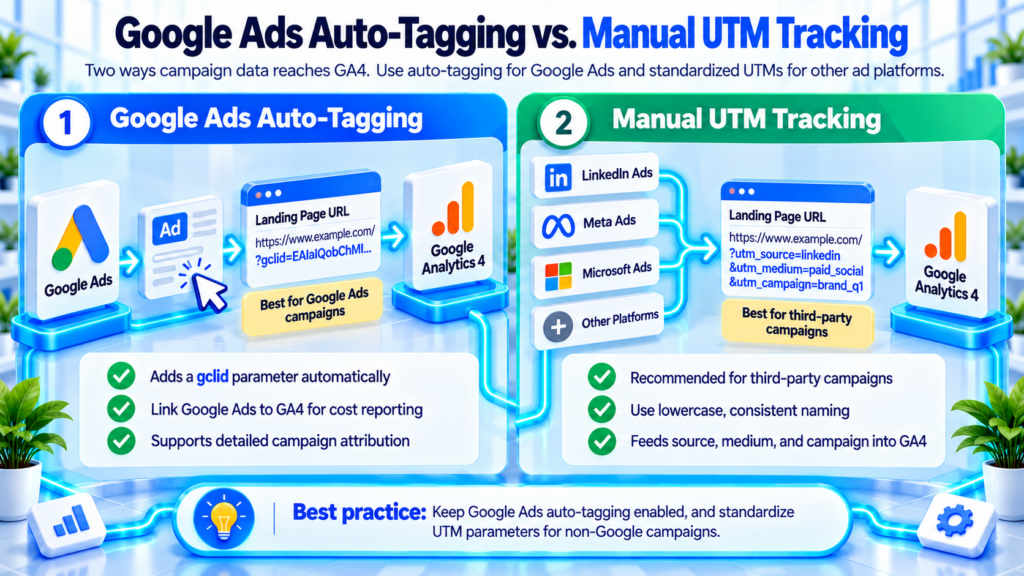
For Google Ads, Google’s recommended approach is to use auto-tagging with a properly linked GA4 property.
Auto-tagging can append a Google Click Identifier, commonly called a gclid, to the landing-page URL. Google also uses additional identifiers and aggregate campaign information in supported measurement circumstances.
When the integration functions correctly, GA4 can obtain more detailed Google Ads information than basic manually tagged source and medium values alone would provide.
Depending on the available data, this can include campaign, ad group, keyword, and other advertising dimensions.
Do not disable Google Ads auto-tagging merely to enforce a consistent UTM naming convention. Auto-tagging supports Google’s integrated advertising measurement and conversion workflows.
Google documents this behavior in Traffic-source dimensions, manual tagging, and auto-tagging.
When to Use Manual UTMs
Manual UTM parameters remain important for paid campaigns running through platforms such as LinkedIn, Meta, Microsoft Advertising, and other sources where a particular GA4 integration does not supply equivalent campaign details automatically.
UTMs describe the origin and classification of traffic arriving through a tagged URL.
Standardized Campaign Parameter Schema
utm_source: Identifies the advertising source, such aslinkedin,facebook,microsoft, orgoogle.utm_medium: Describes the marketing medium, such ascpcorpaid_social, using a controlled naming convention.utm_campaign: Names the campaign, such asconsultation_us_q4_2026.utm_id: Provides a stable campaign identifier and is particularly useful when matching external campaign cost records.utm_content: Optionally distinguishes creative variations, advertisements, or calls to action.utm_term: Optionally identifies a keyword or another intentionally defined campaign classification.
For example, a manually tagged LinkedIn campaign could use:
https://example.com/consultation/?utm_source=linkedin&utm_medium=paid_social&utm_campaign=consultation_us_q4_2026&utm_id=li_consult_q4&utm_content=creative_aThe URL above is a complete example. Replace its domain, destination path, and campaign values with the actual campaign information before using it.
Use a documented naming convention rather than allowing different campaigns or teams to alternate between variations such as LinkedIn, linkedin, and linked_in.
GA4 campaign dimension values can distinguish differences in capitalization and spelling, even when they refer to the same marketing source.
However, the default channel-grouping rules have their own definitions, so a custom medium should be tested to confirm it is categorized as intended.
What Happens When Auto-Tagging and UTMs Are Combined?
Google Ads URLs can contain both automatically generated click identifiers and manually supplied UTM parameters.
When both methods are used and auto-tagging is processed successfully, GA4 generally prioritizes the auto-tagged values for source, medium, and other primary traffic-classification dimensions.
Manual utm_content and utm_term parameters can still populate their corresponding manual reporting dimensions.
If an advertising click identifier cannot be used as intended, GA4 may instead derive cross-channel acquisition dimensions from the available UTM parameters.
For that reason, when using manual parameters as a fallback, supply a consistent and sufficiently complete set rather than relying on one isolated parameter.
Google recommends including relevant values such as utm_source, utm_medium, utm_campaign, utm_id, and utm_source_platform where applicable.
Do Not Tag Internal Website Links with Acquisition UTMs
UTM parameters are intended to identify acquisition campaigns, not ordinary navigation within the same website.
Adding campaign parameters to internal links can interfere with traffic-source information and make attribution harder to interpret.
Use event tracking to measure internal CTA interactions. Reserve campaign URLs for genuine acquisition activity.
Validate Tagged Landing Pages
Before launching a campaign, test the destination URL.
- Confirm that the landing page loads with the campaign parameters present.
- Check that redirects do not unintentionally remove tracking identifiers.
- Verify that the parameters are not rewritten incorrectly by the website or another service.
- Inspect GA4 acquisition reporting after a controlled test, allowing for processing delays.
- Confirm that the source, medium, and campaign values follow the intended naming convention.
On WordPress websites, redirects, URL-cleanup rules, caching configurations, and security integrations are worth checking when campaign tracking behaves unexpectedly.
Consistent campaign identification is the foundation for comparing advertising performance across sources. Without it, the apparent differences between channels may partly reflect inconsistent tracking rather than actual differences in results.
3. Linking Google Ads to GA4
Google Ads and GA4 provide a native account-linking workflow that enables advertising and analytics data to be used together.
When correctly configured, the link makes Google Ads campaign and cost information available in supported GA4 reports and enables additional measurement integrations between the products.
Required Permissions
To establish the connection, the Google account performing the setup generally needs:
- GA4: Editor or Administrator access to the property.
- Google Ads: Administrative access to the Google Ads account being linked, or an approved linking request through the relevant account administrator.
Workflow: Connecting Google Ads to GA4
- Sign in to the intended Google Analytics 4 property.
- Open Admin.
- Under Product links, select Google Ads links.
- Click Link.
- Select Choose Google Ads accounts and choose the appropriate advertising account or manager account.
- Click Confirm, then Next.
- Review the Enable Personalized Advertising setting. Configure it according to the organization’s advertising needs, consent implementation, and applicable privacy requirements.
- Review Enable Auto-Tagging. Enable it when appropriate, or retain the existing auto-tagging configuration if it is already correctly established.
- Click Next and review the account selections and settings.
- Click Submit to create the link.
- Return to Admin > Product links > Google Ads links and confirm that the intended account appears.
Personalized advertising is not mandatory for every organization. It supports certain audience and advertising-personalization capabilities, but its use requires appropriate consideration of consent and privacy obligations.
Google indicates that linked Google Ads data can take up to approximately 48 hours to become available in GA4 reports.
Newly establishing the link does not guarantee that every historical metric, visitor interaction, or advertising dimension will be available retrospectively.
Important: Linking Google Ads and GA4 does not automatically configure every GA4 key event as a Google Ads conversion for bidding. That is a separate measurement decision covered below.
Google’s full procedure is documented in Connect Google Ads to Google Analytics.
Review Key Events After Linking
After creating the link, review the GA4 property’s event and key-event configuration.
Do not assume that every event marked as a key event represents a completed purchase or qualified lead.
Define the events used for performance evaluation deliberately, and inspect the specific event selection in each relevant report.
4. Measuring Verified Leads, Purchases, and Other Business Outcomes
An accurate advertising integration is of limited business value if the website’s important actions are not measured correctly.
A click on a contact button is not a lead. A detected form submission is not necessarily an accepted inquiry, and a completed inquiry is not automatically a paying customer.
The event definitions used for advertising analysis must reflect those distinctions.
Recommended GA4 Events
generate_lead: A verified lead-generating action, such as a successfully processed consultation request.qualify_lead: A later lead qualification milestone based on defined business criteria.purchase: A completed ecommerce transaction using the appropriate transaction information.sign_up: A completed account registration where that action is relevant to the business.
Additional events may be appropriate, but event names and definitions should be documented consistently.
The distinction between automatically detected form activity and a verified successful lead is explored in the earlier article Understanding GA4 Enhanced Measurement: Events, Setup & Limitations.
Validate Successful Processing
For lead-generation websites, send the intended lead event only when the form or application confirms that the request was successfully accepted.
Depending on the implementation, that confirmation might come from a reliable application callback, a specific data-layer message, or a carefully controlled thank-you page.
Test unsuccessful submissions, validation errors, repeated callbacks, and page refreshes.
For purchases, use a valid transaction identifier and appropriate ecommerce parameters so transactions can be interpreted correctly and accidental duplication can be investigated.
Ensure that Analytics does not receive prohibited personally identifiable information from form submissions, event parameters, or URLs.
Choose Which Events Become Key Events
In GA4, a key event is an event considered important to the organization’s objectives.
For a lead-generation website, a verified generate_lead event may be appropriate. For ecommerce, a correctly implemented purchase event is usually important.
A preliminary cta_click event may provide useful diagnostic information without needing to be treated as an acquisition outcome.
Workflow: Verifying an Advertising Key Event
- Identify the business outcome that should be recorded.
- Confirm that the correct GA4 event is implemented.
- Test the action using the website’s actual form, checkout, or application workflow.
- Inspect Google Tag Manager Preview where applicable.
- Confirm that GA4 receives the intended event using DebugView.
- Verify the relevant parameters and confirm that no prohibited personal information is sent.
- Mark the appropriate event as a key event using GA4’s event management controls.
- Test failure cases and duplicate-trigger conditions.
- Allow for reporting processing and review the resulting key-event data.
Event quality should be established before advertising efficiency is calculated. An inaccurate lead event can make an underperforming campaign appear profitable.
5. Assigning Meaningful Monetary Values to GA4 Events
GA4 supports monetary values for appropriate events through event parameters such as value and currency.
These values are particularly important for ecommerce measurement, but their interpretation requires additional care for lead-generation websites.
Actual Transaction Revenue
For a properly implemented purchase event, the transaction value should represent the amount defined by the organization’s ecommerce measurement strategy.
Google’s ecommerce implementation also requires appropriate transaction and item information.
Use a valid ISO 4217 currency code, such as USD or GBP, and ensure that the numerical value follows the required event format.
The resulting revenue can support revenue-based advertising performance analysis when the relevant transaction and attribution data are collected correctly.
Estimated Lead Values
A consultation request does not usually have the same monetary meaning as a completed sale.
However, an organization may choose to assign an estimated value to a qualified or unqualified lead for internal analysis or advertising optimization.
Such values should be based on documented assumptions, rather than an arbitrary number selected simply to make campaign performance appear stronger.
For example, a simple expected-value model might consider:
- The proportion of inquiries that become qualified opportunities.
- The proportion of qualified opportunities that become paying customers.
- The average contribution generated by those acquired customers.
Estimated Lead Value
Estimated value per lead = Qualification rate × Customer close rate after qualification × Average contribution per acquired customer
For this model, the contribution measure should be defined consistently. Using customer revenue produces an expected-revenue estimate; using gross profit contribution produces a different type of expected-value estimate.
These are projections based on the organization’s observed business performance, not proof that an individual inquiry has already generated that amount.
Setting Values in GA4
When an event carries an appropriate monetary value, its value parameter should be numerical and accompanied by the corresponding currency parameter.
GA4 also supports a default monetary value for a key event when an event does not already provide a value.
To configure a default value, an authorized user can navigate to Admin > Data display > Events, open the Key events tab, and use the relevant event’s options menu to select Set default key event value.
The default is applied only when a suitable event value was not already supplied, and changes apply prospectively rather than rewriting previous reporting data.
See Google’s default key-event value documentation.
Estimated lead value must not be confused with the actual revenue used to establish financial ROAS or company profit.
6. Creating Google Ads Conversions from GA4 Key Events
GA4 key events and Google Ads conversions serve related but different purposes.
GA4 uses key events to identify important actions across measured website and app activity. Google Ads conversions are configured for advertising reporting and, when appropriate, campaign optimization.
Google supports creating Google Ads conversions based on GA4 key events.
Workflow: Using a GA4 Key Event in Google Ads
- Confirm that the intended GA4 property is linked to the correct Google Ads account.
- Verify that the business event, such as
generate_lead, is being collected correctly in GA4. - Mark the event as a key event in GA4.
- In Google Ads, open Goals and navigate to Summary under Conversions.
- Choose Create conversion action.
- Select the linked Google Analytics property when prompted.
- Choose the appropriate Analytics event or key event to use as the conversion action.
- Review the conversion category, value settings, counting method, and other available configuration options.
- Decide whether the conversion should be included in primary campaign optimization goals or retained for secondary observation.
- Save the conversion action and allow the systems to process the configuration.
- Verify that the conversion appears in the intended Google Ads account and receives valid subsequent data.
Creating Conversions Directly in GA4
For eligible properties, Google’s conversion-management interface also allows conversions to be created directly in GA4.
The documented navigation is Advertising > Tools > Conversion management.
Select the intended Google Ads account, create a new conversion, choose the eligible event or key event, review its settings, and save the configuration.
Conversions created through the GA4 interface are initially configured as secondary conversion actions in Google Ads. If a conversion should be used for campaign bidding, review and change its action optimization setting in Google Ads as appropriate.
Availability and the placement of these controls can vary by property and interface configuration.
See Google’s conversion creation and management documentation.
Avoid Duplicate Conversion Actions
Before creating a new Google Ads conversion, check whether the same business outcome is already measured by a native Google Ads conversion tag, an existing GA4-derived conversion, or another integrated system.
Sending the same successful lead through multiple conversion actions without an intentional reporting strategy can cause misleading totals or inappropriate bidding behavior.
Determine which conversion actions should be included in the primary optimization goals and which should remain secondary or observational.
For lead generation, also review whether the conversion counting method matches the business definition of a valid inquiry.
For example, counting repeated activity from one advertising interaction may be reasonable for purchases but misleading when measuring a single lead submission.
Importing or creating a conversion should be a deliberate measurement decision, not an automatic step applied to every GA4 event.
7. Importing Advertising Costs from Other Platforms
A Google Ads link provides an important part of advertising performance reporting, but it does not automatically supply advertising costs from unrelated platforms.
Campaigns running through Meta, LinkedIn, Microsoft Advertising, or other services may require separate cost-data integration.
GA4 supports campaign data import for third-party advertising costs, impressions, and clicks.
Depending on the platform and available features, imports may use a supported direct connection, a prepared external data source, or a manual CSV upload.
Direct Third-Party Advertising Integrations
Google currently documents direct campaign-data import connections for:
- Meta
- Snap
- TikTok
These supported connections can automate the collection of advertising campaign information and run on a scheduled basis.
For other sources, or when a platform’s tagging configuration is incompatible with the direct integration, GA4 also supports alternative import methods such as CSV, Google Sheets, BigQuery, and other compatible data connectors.
Before implementing a new connection, confirm that the intended source is currently supported and that its required campaign parameters are being collected consistently.
Why UTM Consistency Matters for Cost Imports
Imported campaign data needs suitable identifiers so that cost information can be associated with the corresponding reporting dimensions.
Google’s campaign import documentation identifies the following fields:
Campaign Data Import Field Requirements
- Campaign source (
utm_source): Required. - Campaign medium (
utm_medium): Required. - Date: Required, using the supported
YYYY-MM-DDformat. - Campaign ID (
utm_id): Optional, but highly recommended. - Campaign name (
utm_campaign): Optional, but highly recommended. - Currency: Required when advertising cost is imported.
At least one supported metric, such as cost, clicks, or impressions, must be included in the import.
Google uses source, medium, and date as required matching keys when joining imported campaign records with relevant GA4 data.
Campaign IDs and names are highly recommended because they help preserve useful campaign distinctions and support more meaningful reporting.
Import values should match the campaign information actually recorded through the destination URLs. Inconsistent capitalization, spelling, or campaign identifiers can cause incomplete matching.
For example, a visitor tagged with linkedin / paid_social should not be expected to match automatically with imported records describing the same traffic as LinkedIn / Paid-Social.
Workflow: Importing Third-Party Campaign Cost Data
- Confirm that the third-party advertising URLs contain consistent campaign parameters.
- In GA4, navigate to Admin > Data collection and modification > Data import.
- Select Create import source.
- Choose Campaign data as the import type.
- Select an available import source, such as a supported advertising connection, CSV upload, or another compatible source.
- Prepare the required campaign dimensions and the metrics being imported.
- Match source, medium, date, and any applicable campaign identifiers to the corresponding Analytics fields.
- When importing cost, provide a valid ISO 4217 currency code or configure the supported static-currency mapping option.
- Review the field mapping, import configuration, and any available scheduling options.
- Complete the import and inspect the resulting import status.
- Validate imported advertising data against the original advertising platform’s reports.
Google provides detailed instructions and supported formats in Import campaign data.
Avoid Duplicate Campaign Cost Data
Before connecting a new automated advertising import, check whether the same platform’s campaign spending is already being supplied through a previous import source.
Overlapping datasets can cause duplicate cost entries and distort reported advertising efficiency.
Google recommends removing conflicting datasets before enabling an overlapping direct third-party integration.
However, re-uploading updated records through the same properly configured import source is different from maintaining duplicate overlapping sources. Google supports refreshing imported campaign values using matching keys.
Keep a record of each import source, the advertising accounts included, the dates covered, and the fields used for matching.
Validate the Imported Data
Google provides a Campaign Data Import Validation report, accessible through Reports > Data import > Campaign data import validation when the relevant reporting collection is available.
The report can help identify missing campaign measurements and compare imported figures with the original platforms.
Where the import source provides health information, review the percentage of records successfully imported and the matching rate.
A successful upload does not necessarily mean every imported campaign row matched observed Analytics traffic.
Likewise, campaign costs can sometimes be reported even when matching to website activity is incomplete.
Campaign cost import adds spending information. It does not reveal an otherwise unobservable individual user’s complete journey or prove that a specific advertisement caused a particular purchase.
8. Evaluating Advertising Cost and Key-Event Performance in GA4
Once campaigns are identified consistently, business events are validated, and advertising cost information is available, GA4 can provide a more useful performance comparison.
Its Advertising workspace includes reports for campaign performance, attribution, and selected business outcomes.
Google Ads Campaign Performance
For linked Google Ads accounts, the Google Ads campaigns performance report can show advertising campaign information alongside key events, cost, clicks, and other supported metrics.
Workflow: Reviewing Google Ads Campaign Results
- Open the intended GA4 property in a desktop browser.
- Select Advertising from the main navigation.
- Open Key event performance.
- Select Google Ads from the available product selector.
- Choose an appropriate completed reporting period.
- Review campaign dimensions and available cost, click, revenue, and key-event metrics.
- Identify the specific key event relevant to the business question.
- Compare campaigns using consistent event definitions and reporting periods.
- Investigate unusually low or high cost-per-key-event values before interpreting them as business performance.
Depending on the report’s configuration, relevant metrics include:
- Ads cost: Advertising expenditure associated with the reported campaign.
- Ads clicks: Clicks recorded by the advertising platform.
- Ads cost per click: Average advertising cost per click.
- Key events: Recorded important actions credited under the report’s applicable definitions.
- Cost per key event interaction: Advertising cost divided by the corresponding selected key-event measurement.
- Total revenue: Supported revenue collected through appropriate ecommerce, subscription, and advertising-revenue measurement.
- Return on ad spend: A revenue-to-advertising-cost measure where the necessary information is available.
The report and its supported fields are documented in Google Ads campaigns performance report.
Compare Advertising Channels
For broader comparisons, use the All channels performance report in the Advertising workspace.
Google’s documented navigation is Advertising > Planning > All channels.
The report supports comparison across channels and relevant campaign dimensions where cost and attribution data are available.
Do not assume that every advertising platform will have complete cost information without the corresponding link or import configuration.
When selecting a subset of key events, remember that reported campaign costs may still represent the campaign’s full spending rather than only a cost fraction assigned to the selected event type.
This is important when interpreting cost per key event or comparing campaigns that support multiple goals.
See Google’s All channels performance report documentation.
9. Analyzing Multi-Touch Advertising Paths
Website visitors may encounter several marketing channels before completing an important action.
For example, a prospective customer might initially visit through a LinkedIn advertisement, return through paid search several days later, and ultimately submit a consultation request after another visit.
The GA4 Advertising workspace includes attribution reporting intended to help examine these multi-touch journeys.
Google’s current report is called Key event attribution paths.
Workflow: Reviewing Key Event Attribution Paths
- In GA4, select Advertising.
- Under Key events, open Key event attribution paths.
- Select the relevant completed reporting period.
- Use the key-event selector to focus on the business outcome being investigated, such as
generate_leadorpurchase. - Review the visualization showing Early touchpoints, Mid touchpoints, and Late touchpoints.
- Change the available reporting dimension to compare channels, sources, mediums, or campaigns as appropriate.
- Inspect the data table showing recorded paths and metrics such as key events, purchase revenue, days to key event, and touchpoints to key event.
- Use the attribution model selector, where available, to compare supported models.
- Record meaningful patterns, keeping the report’s attribution and observation limitations in mind.
Understanding Early, Middle, and Late Touchpoints
GA4’s path visualization groups the eligible touchpoints according to their position within the measured journey.
- Early touchpoints: Interactions near the beginning of the observed path.
- Mid touchpoints: Interactions in the middle of the observed path.
- Late touchpoints: Interactions near the completion of the measured key event.
The exact grouping follows Google’s reporting rules and can vary according to the number of touchpoints.
For example, a one-touchpoint path does not contain the same early and middle stages as a longer customer journey.
Understanding the Attribution Model Used in the Visualization
The attribution-path visualization initially presents credit using the Paid and organic channels last click attribution model.
The model selector can be used to inspect the visualization under other supported attribution approaches.
Changing the attribution model changes how credit is distributed or displayed among eligible interactions.
It does not uncover touchpoints that GA4 failed to observe, nor does it establish the causal contribution of each advertisement.
This distinction is important when comparing the path visualization with GA4’s broader reporting attribution settings.
What Attribution Paths Can and Cannot Prove
Attribution paths can reveal patterns among the interactions that GA4 observed and considered eligible for attribution.
They cannot guarantee complete visibility into every advertisement a person saw, every browser or device they used, or every offline interaction preceding the outcome.
The report also focuses on journeys associated with recorded key events. Visitors who do not complete a key event are not represented in the same way.
Additionally, attribution credit is model-dependent. A campaign receiving fractional credit under a data-driven model should not be interpreted as a precisely measured percentage of causal responsibility.
Multi-touch attribution is useful for understanding observed journeys and allocating reporting credit. It is not a substitute for controlled experiments when evaluating whether an advertising campaign caused incremental business outcomes.
For the current report structure, consult Key event attribution paths.
10. Attribution Models, Lookback Windows, and Reporting Differences
Attribution determines how reporting credit is distributed among eligible marketing interactions associated with a key event or advertising conversion.
GA4 uses data-driven attribution as its default reporting model for eligible key events.
Data-driven attribution applies Google’s modeling methodology to the available interactions and conversion paths.
Google also supports last-click attribution, but older models such as first-click, linear, time-decay, and position-based attribution are no longer available in current GA4 reporting.
Review the Property’s Attribution Configuration
Authorized users can review the property’s settings through Admin > Data display > Events > Attribution settings.
Depending on the property’s interface and eligible features, the settings include:
- Reporting attribution model: Determines how eligible key-event credit is distributed in applicable GA4 reports.
- Channels that can receive credit: Controls whether eligible web conversions can receive credit from Google paid channels or from paid and organic channels.
- Key event lookback window: Determines how far back an eligible interaction may receive key-event attribution credit.
A consultation decision that commonly takes several weeks may require different interpretation from a low-consideration ecommerce purchase.
The configured lookback window should reflect the organization’s measurement needs while remaining within Google’s supported settings.
Google’s attribution settings documentation explains these controls.
Key-Event Attribution and Advertising Conversion Attribution Are Not Identical
GA4 key-event reporting and Google Ads conversion reporting can use different channel-credit and conversion-management configurations.
For example, the Google paid channels setting limits eligible web-conversion credit to Google advertising interactions under the applicable rules.
The Paid and organic channels option permits broader credit eligibility across supported paid and organic interactions.
The selected setting can affect conversions shared with Google Ads and may influence reporting or bidding.
Google has also introduced centralized conversion-management controls in GA4 for eligible properties. Depending on the property and the selected attribution settings, conversion windows and counting methods may be managed in GA4 rather than through the older Google Ads-only workflow.
When reviewing a conversion, confirm which interface currently manages its settings instead of assuming that all linked properties use the same controls.
Event-Scoped and Session-Scoped Dimensions Behave Differently
The GA4 reporting attribution model affects eligible key-event metrics when they are analyzed using event-scoped traffic dimensions.
It does not recalculate session-scoped acquisition dimensions such as Session source or Session medium in the same way.
This is important when comparing a session acquisition report with an event-attribution report.
Both reports may be valid while answering different questions.
Why Google Ads and GA4 Numbers Can Differ
The same business event may produce different reported values in Google Ads and GA4.
Possible reasons include:
- Different attribution models or eligible channels.
- Different conversion counting and lookback settings.
- Different reporting date conventions or account time zones.
- Delayed event processing or attribution adjustments.
- Consent, privacy restrictions, or modeled measurement.
- Different conversion actions or event definitions.
- Differences between advertising clicks and GA4 sessions.
Before treating discrepancies as implementation failures, confirm that the two reports refer to the same intended business action and have compatible comparison settings.
Recent attribution data may continue to change as processing and modeling are completed.
Comparing totals from two platforms without first reconciling their definitions can create false conclusions about tracking accuracy or campaign performance.
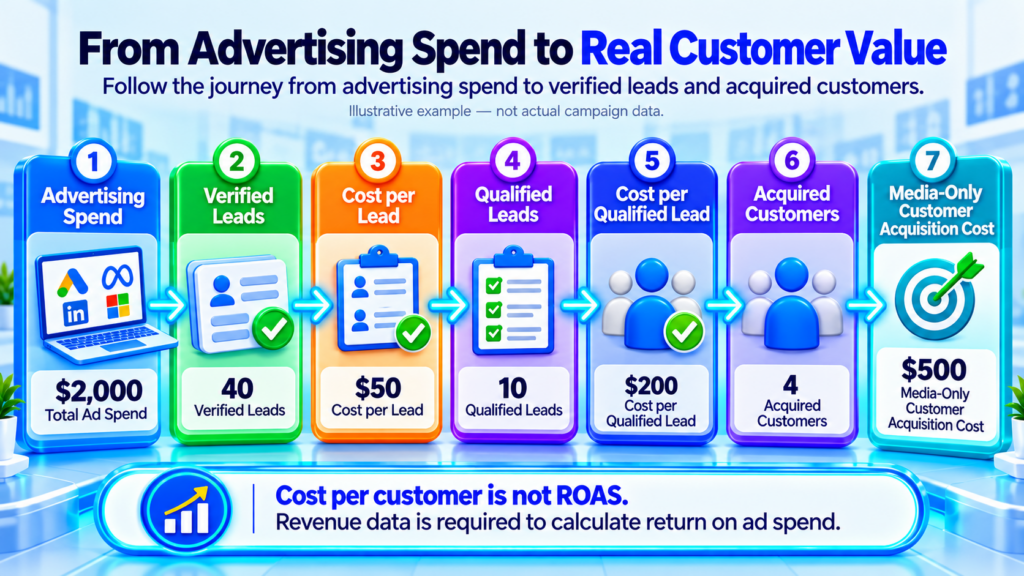
Illustrative example: $2,000 in advertising spend produces 40 verified leads, 10 qualified leads, and four customers. This equals $50 per lead, $200 per qualified lead, and $500 in media-only acquisition cost per customer. ROAS requires attributed revenue data.
11. Interpreting CPC, Cost per Lead, ROAS, CAC, and Customer Lifetime Value
Advertising reports contain several financial and operational metrics that describe different aspects of performance.
Using the correct measure for the business question is more important than selecting a single metric for every campaign.
Advertising Measurement Formulas
- Cost per click (CPC): Advertising cost / Advertising clicks.
- Cost per lead (CPL): Relevant advertising cost / Verified leads attributed under the defined measurement method.
- Cost per qualified lead: Relevant advertising cost / Leads meeting defined qualification criteria.
- Return on ad spend (ROAS): Attributed revenue / Advertising cost.
- Media-only customer acquisition cost: Advertising cost / Newly acquired customers attributed under the defined method.
- Broader customer acquisition cost: Relevant acquisition expenses / Newly acquired customers.
These formulas are simple, but their usefulness depends on consistent definitions, accurate inputs, and appropriate attribution.
Worked Example: From Advertising Spend to Acquired Customers
Consider a hypothetical lead-generation campaign with the following results over a completed reporting period.
Illustrative Campaign Results — Example Data Only
- Advertising cost: $2,000
- Verified leads: 40
- Qualified leads: 10
- Newly acquired customers: 4
Cost per verified lead: $2,000 / 40 = $50
Cost per qualified lead: $2,000 / 10 = $200
Media-only customer acquisition cost: $2,000 / 4 = $500
The example demonstrates why the lowest cost per lead does not necessarily establish efficient customer acquisition.
The campaign generated 40 verified inquiries, but only 10 met the organization’s qualification criteria and four became paying customers.
The $50 cost per lead describes the initial inquiry-generation efficiency. The $500 media-only acquisition cost describes advertising expenditure per acquired customer under the example’s assumed attribution method.
The calculation still excludes labor, sales costs, agency fees, and other expenses that may be relevant to broader customer acquisition cost.
It also does not establish ROAS, because no actual customer revenue has been specified.
All figures in this example are illustrative. They do not represent observed GA4 or advertising-platform data.
Cost per Lead Is Not Customer Acquisition Cost
A lead-generation campaign may produce many inquiries, but only a portion may become qualified opportunities or paying customers.
Dividing advertising spend by all recorded inquiries measures a type of cost per lead. It does not establish the cost of acquiring a paying customer.
For reliable customer acquisition analysis, the organization must know which leads became customers and which acquisition expenses should be included.
ROAS Is Not Profit or ROI
Revenue-based ROAS measures revenue associated with advertising relative to advertising cost.
It does not automatically account for fulfillment, labor, product costs, refunds, overhead, or other business expenses.
A campaign reporting a favorable ROAS can still be unprofitable when the organization’s cost structure is considered.
Likewise, a lead-generation campaign that records estimated lead values may support an internal efficiency model, but those estimates must not be presented as actual earned revenue.
Customer Lifetime Value Requires Additional Business Data
Customer lifetime value estimates the value a customer is expected to contribute over an appropriately defined relationship period.
Its calculation depends on the business model and may require repeat purchases, retention, customer margins, and other records held outside GA4.
GA4 may contribute useful acquisition and behavioral information, but a reliable lifetime-value model generally requires more than advertising click and key-event data alone.
ROAS, CAC, and LTV become more useful when Analytics measurements are reconciled with actual business records rather than treated as interchangeable dashboard numbers.
12. Troubleshooting Advertising Measurement and Cost Reporting
Before changing advertising budgets based on GA4 performance reports, verify that the underlying campaign identification, event tracking, and cost information are functioning correctly.
Workflow: Advertising Measurement Audit Checklist
- Check GA4 collection: Confirm the intended web data stream is collecting website activity.
- Verify Google Ads links: Confirm that the correct Google Ads account is associated with the GA4 property.
- Check auto-tagging: Verify that Google Ads auto-tagging is enabled where required and that landing pages accept the appended identifiers.
- Inspect redirects: Confirm that redirects and URL-processing rules do not remove or corrupt advertising identifiers.
- Validate manual UTMs: Confirm consistent campaign source, medium, campaign name, and applicable campaign ID values.
- Test important events: Use GTM Preview and GA4 DebugView to verify successful business actions.
- Check for duplicates: Investigate overlapping GA4 events, native advertising conversion tags, plugin integrations, and repeated callbacks.
- Review conversion settings: Confirm the intended Google Ads conversions, counting methods, optimization goals, and eligible attribution channels.
- Check imported costs: Verify third-party campaign import status, matching keys, currency configuration, and available validation reports.
- Inspect overlapping imports: Confirm that the same advertising costs are not being introduced through duplicate datasets.
- Review consent and filters: Confirm that measurement behavior matches the website’s consent implementation and active GA4 data filters.
- Allow processing time: Account for normal reporting delays and attribution adjustments.
- Compare consistent definitions: Reconcile dates, event selections, currencies, campaign identifiers, and attribution models before drawing conclusions.
When Google Ads Data Is Missing
Missing campaign cost or attribution information may be caused by an absent product link, disabled auto-tagging, lost URL parameters, or insufficient processing time.
Google provides a dedicated guide to troubleshooting missing Google Ads data in GA4.
WordPress-Specific Considerations
On WordPress websites, check whether the theme, page builder, analytics plugin, or other integrations are responsible for sending important events.
Multiple independent tracking systems can produce unexpected duplicates when they measure the same action.
Redirect plugins, caching systems, security rules, and landing-page scripts should also be tested to ensure campaign parameters survive the visit as intended.
Do not assume that the presence of a GA4 event in DebugView proves that an associated advertising cost or conversion value has been imported correctly. Those are separate validation steps.
The full measurement chain must be tested: campaign identification, website event, key-event configuration, advertising conversion, cost information, and the resulting report.
13. Using Advertising Measurement to Inform Budget Decisions
Once the measurement implementation has been validated, advertising reports can help identify campaigns that warrant further investigation.
For example, a campaign with relatively high CPC but consistently strong verified lead quality may deserve a different evaluation from a campaign producing inexpensive but unqualified inquiries.
Likewise, a channel contributing to early customer discovery may play a different role from one associated with later completed purchases.
A disciplined review process should consider:
- Whether the campaign attracts the intended audience.
- Whether visitors reach a suitable landing page.
- Whether verified leads or purchases are recorded reliably.
- Whether advertising costs are complete and properly associated.
- Whether differences in attribution settings affect comparisons.
- Whether actual customer outcomes support the reported performance.
Not every campaign with a low immediate key-event rate should automatically be discontinued. Some campaigns support earlier stages of the customer journey, while others target visitors ready to act.
However, the existence of an attribution-path contribution does not guarantee that spending on the earlier campaign caused the later outcome.
Where budget decisions involve substantial spending, controlled experiments, geographic tests, or other suitable incrementality methods can complement attribution reporting.
These methods can help distinguish the business outcomes associated with advertising from the additional outcomes actually caused by advertising activity.
Better measurement supports better advertising decisions, but it does not eliminate uncertainty. The objective is to reduce that uncertainty through consistent data, verified outcomes, and appropriate analysis.
Building a Reliable Advertising Performance Framework
Connecting paid advertising to GA4 provides a useful foundation for measuring campaign performance beyond impressions and clicks.
The implementation begins with reliable campaign identifiers, properly linked advertising accounts, and accurate business events. It becomes more useful when advertising costs are available, key events are configured deliberately, and attribution settings are understood.
GA4’s Advertising workspace can then help compare campaigns, examine the observed paths leading to key events, and evaluate relevant cost and revenue measures.
For organizations that depend on qualified leads or repeat customers, the analysis should extend beyond website measurement to the actual business records needed for customer acquisition and lifetime-value calculations.
The most useful advertising reports do not simply show where money was spent. They provide a defensible connection between that spending, measurable customer actions, and the business results those actions represent.