The Google Search Console “Intent Bridge”
Most SEO strategies are considered successful when the organic traffic graph trends upward. Around here, we view raw traffic as a vanity metric. If 10,000 visitors arrive via a high-volume keyword but zero of them fire a Key Event or consultation request, that traffic is a bandwidth liability, not a business asset.
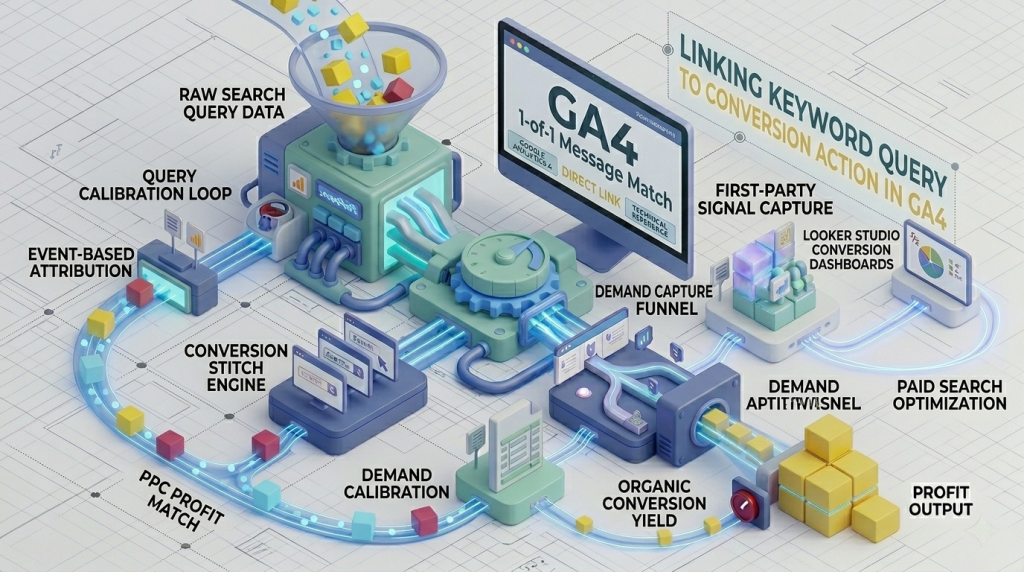
Standard SEO stops at the click—it measures visibility, not buying intent. To build a sustainable growth engine, we must bridge two distinct data silos:
- Google Search Console (GSC): Captures pre-click search query intent before a user hits your domain.
- Google Analytics 4 (GA4): Tracks post-click behavioral interactions and conversion actions after arrival.
This connection is the Intent Bridge. Below are the precise technical steps to configure the integration, publish the hidden reports, and evaluate your conversion-driving keywords.
Step 1: The GSC and GA4 Administrative Link
Before analyzing the data, we must establish the underlying infrastructure through an administrative handshake authorizing GA4 to import Search Console performance metrics.
Workflow: Linking Search Console to GA4
- Log in to your Google Analytics 4 property.
- Navigate to Admin (the gear icon in the bottom left navigation bar).
- In the Property Settings column, expand Product Links and click Search Console Links.
- Click the Link button in the upper right corner.
- Click Choose Accounts and select the verified GSC property (you must hold Verified Owner permissions in Search Console).
- Click Confirm, then select your primary Web Data Stream.
- Review the configuration details and click Submit.
Step 2: Activating the GSC “Library” Reports
This is the step most implementation teams overlook: linking the properties authorizes the data flow, but GA4 does not add the reports to your main sidebar navigation by default. You must publish the collection from the GA4 Report Library.
Workflow: Publishing Search Console Collections
- Click Reports (the bar chart icon in the left menu).
- Scroll to the bottom of the navigation drawer and click Library.
- In the Collections overview cards, locate the card titled Search Console.
- Click the three vertical dots (
⋮) on the Search Console card and select Publish.
GA4 will immediately inject a dedicated Search Console workspace into your sidebar, containing two core report views:
- Google Organic Search Queries: Correlates impression volume, clicks, CTR, and average rank by keyword.
- Google Organic Search Traffic: Correlates organic landing page traffic directly with post-click engagement metrics.
Step 3: Connecting Query Intent to Key Events
By pairing the Queries report with your Organic Search Traffic landing page report, you bridge the gap between pre-click search terminology and post-click conversion execution.
Workflow: Evaluating High-Intent Organic Traffic
- Navigate to Reports > Search Console > Google Organic Search Traffic.
- Review landing page performance alongside your registered Key Events & Custom Parameters.
- Cross-reference high-converting URL paths against the top queries driving clicks in the Google Organic Search Queries table.
- Filter out informational keywords that generate high traffic volume but zero Key Events, redirecting SEO resources toward commercial intent queries.
The Result: Profitable Organic Traffic
You are no longer measuring SEO success solely through search rankings or arbitrary traffic spikes. The Intent Bridge gives you the visibility needed to measure precise commercial return on every organic campaign.