
Google Analytics 4 provides an extensive reporting environment, but its interface is not intended to serve as a permanent, unrestricted repository for every analytical question. Data retention settings, reporting aggregation, exploration limits, and predefined dimensions can restrict the kinds of historical and custom analysis an organization can perform.
BigQuery provides a different approach. By exporting collected GA4 events into Google Cloud’s data warehouse, an organization can query event-level records with SQL, retain eligible exported history according to its own storage policies, and combine that information with appropriately governed business datasets.
The advantages extend beyond historical reporting. A well-designed warehouse can support custom event analysis, independently defined acquisition metrics, customer lifecycle investigations, and reporting tables built specifically for dashboards.
However, a BigQuery export is not automatically a complete copy of every GA4 report, nor does it recover previously lost data or eliminate attribution uncertainty. It provides greater control over the collected records that are successfully exported, along with the responsibility to manage their accuracy, security, retention, and cost.
This guide explains how to configure GA4 BigQuery export, understand the resulting tables, write practical GoogleSQL queries, investigate connections to customer records, and build a maintainable reporting architecture.
It follows The Advertising ROI Handbook, which established how advertising costs, verified key events, attribution, and customer acquisition metrics should be interpreted before combining them in advanced reporting.
1. Why Export GA4 Data to BigQuery?
GA4 reporting and BigQuery address related but different analytical needs.
The GA4 interface is designed to make common acquisition, engagement, and business performance questions accessible without requiring SQL.
BigQuery is a cloud data warehouse. It allows analysts to query exported event records, transform those records into structured datasets, and combine them with other authorized sources of information.
The difference is not simply one of reporting volume. It is a difference in how the underlying data can be analyzed and maintained.
What BigQuery Makes Possible
- Longer-term analysis: Retain eligible exported event history beyond GA4’s standard exploration retention periods, subject to BigQuery storage settings.
- Custom SQL: Create analyses that aren’t available as predefined GA4 reports.
- Event parameter inspection: Examine collected parameters and develop reporting logic around relevant events.
- First-party data integration: Join appropriately identified Analytics records with authorized CRM, transaction, or other business records.
- Custom measurement: Define and document your own metrics, attribution rules, and reporting transformations.
- Reporting pipelines: Build reusable reporting tables for Looker Studio, Power BI, or other supported tools.
- Data governance: Apply Google Cloud permissions, retention rules, billing controls, and monitoring independently of the GA4 reporting interface.
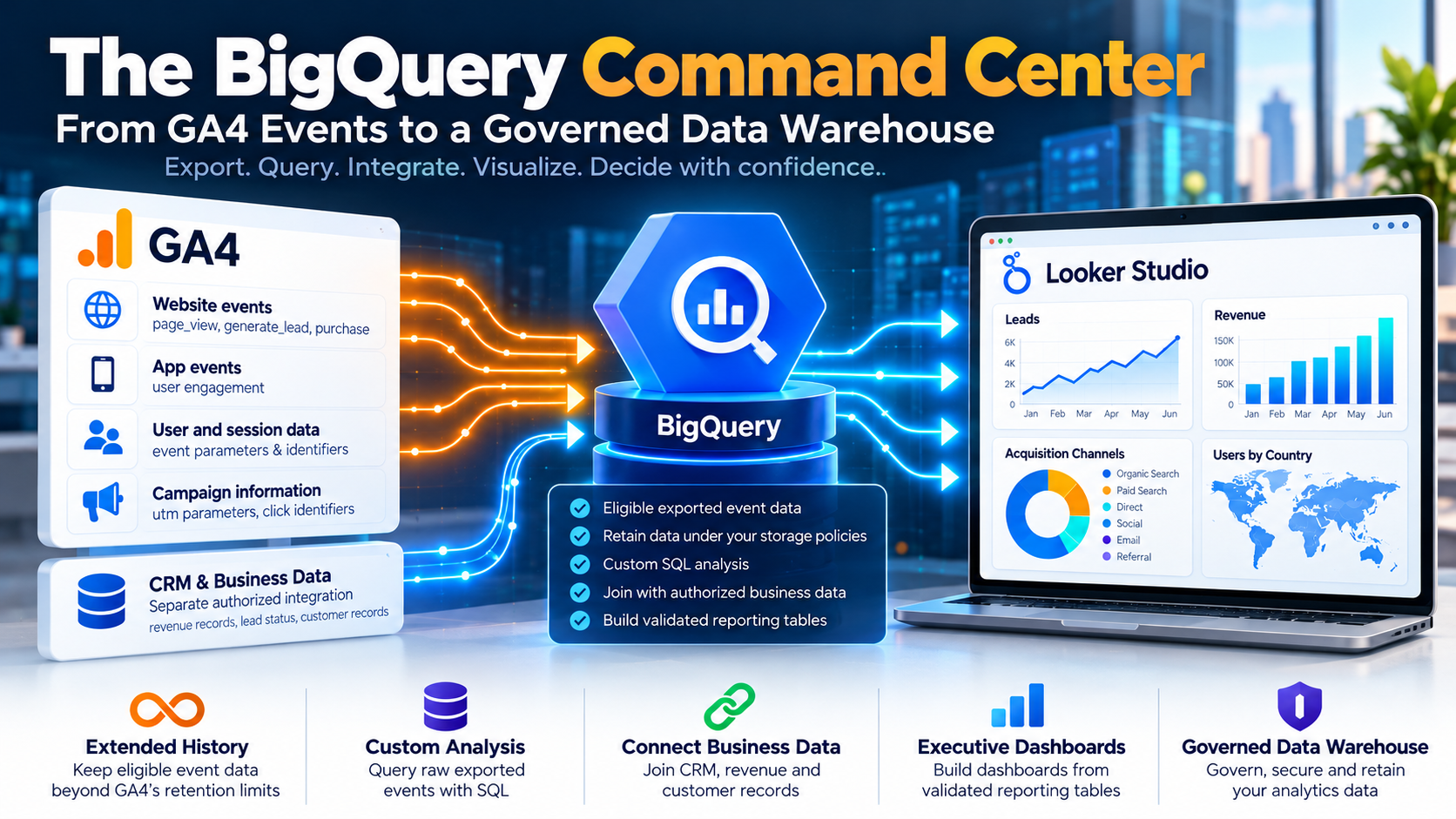
The BigQuery Command Center Architecture
- GA4 collection: Website or app activity is collected through the organization’s configured measurement implementation.
- BigQuery export: Eligible collected events are exported into Google Cloud.
- Raw event layer: Exported records are stored in their documented nested event schema.
- Transformation layer: SQL prepares reporting-friendly data, business metrics, and controlled join keys.
- Business data layer: Approved CRM, transaction, and other first-party records provide additional context.
- Reporting layer: Validated tables or views support dashboards, investigations, and recurring analysis.
- Governance: Access permissions, cost controls, retention, and quality monitoring apply throughout the system.
BigQuery provides more analytical flexibility over exported data. It does not make incomplete measurement complete, and it does not automatically reproduce every number shown in the GA4 interface.
2. Understanding GA4 Data Retention and Historical Export
One of the strongest reasons to establish BigQuery export is the ability to maintain an independently governed history of collected event records.
However, the relationship between GA4 retention and BigQuery storage requires careful explanation.
GA4 Retention Settings
For standard GA4 properties, the configurable retention options for user-level and event data are generally:
- 2 months
- 14 months
Eligible Analytics 360 properties support longer retention options of 26, 38, or 50 months for applicable event data. However, certain user-level and key-event data remain subject to shorter limits, and additional restrictions apply to some property sizes and data categories.
Large and XL properties can be subject to additional restrictions. Google’s documentation specifies a two-month retention limit for properties in these classifications, so administrators should confirm the settings actually available in their property rather than assuming every property offers the same maximum.
Some information, including age, gender, and interest data, is also subject to separate retention rules.
The important distinction is that these retention settings primarily affect non-aggregated reporting, including Explorations and funnel reports.
They do not mean that all standard aggregated GA4 reports disappear after 14 months.
Google explains these distinctions in its GA4 data retention documentation.
BigQuery Does Not Restore Missing Historical Events
Once an Analytics property is connected to BigQuery, the export begins collecting eligible data prospectively.
The normal integration does not automatically export years of previously collected events from before the link existed.
Likewise, records that were not collected, were excluded from export, or were unavailable because of prior measurement restrictions cannot simply be recovered through a new BigQuery connection.
If historical event-level analysis may become important, establishing the export early is preferable to waiting until the analysis is urgently needed.
BigQuery Retention Is Configurable, Not Automatically Permanent
BigQuery can retain exported records for extended periods, but the warehouse’s retention depends on several operational factors:
- Dataset and table expiration settings.
- Storage costs and billing status.
- Google Cloud project availability.
- Administrative deletion or migration actions.
- Applicable legal obligations and organizational retention policies.
For example, the BigQuery sandbox is intended primarily for experimentation and applies automatic resource expiration and usage limits.
Under Google’s current sandbox rules, tables, views, and partitions automatically expire after 60 days.
The sandbox therefore should not be treated as a permanent historical archive.
A production implementation should use documented retention settings, appropriate billing, and an intentional backup or recovery strategy where required.
BigQuery gives an organization control over the retention of successfully exported records. It does not guarantee permanent storage of every event ever collected by GA4.
3. Configuring the GA4 to BigQuery Export
The native GA4 BigQuery integration establishes a connection between an Analytics property and a Google Cloud project.
Before starting, confirm that the correct GA4 property, Google Cloud project, and data location have been selected.
Required Permissions
Google’s linking procedure requires sufficient permissions in both products.
- Google Analytics: Editor or Administrator access to the intended GA4 property.
- Google Cloud: Project Owner access, or a custom permission set that includes the project IAM and API-management permissions required for linking.
The Google Cloud project must have the BigQuery API enabled, and an appropriate billing or supported sandbox configuration must be available.
Where an organization uses custom Google Cloud roles, the necessary permissions include the ability to inspect and modify the project’s IAM policy and check or enable the relevant service.
Workflow: Connecting GA4 to BigQuery
- Sign in to the Google Cloud Console.
- Create a dedicated Google Cloud project or select an appropriately governed existing project.
- Open APIs & Services > Library and confirm that the BigQuery API is enabled.
- Review the project’s billing configuration and any organizational access restrictions.
- Sign in to the intended GA4 property.
- Navigate to Admin > Product links > BigQuery links.
- Click Link.
- Choose the intended Google Cloud project and click Confirm.
- Select the BigQuery data location appropriate for the organization’s technical and legal requirements.
- Click Next.
- Choose Configure data streams and events to select the eligible web or app streams and any event exclusions.
- Review any applicable mobile advertising identifier settings.
- Select the required export frequency: Daily, Streaming, or both. Eligible Analytics 360 properties may also offer Fresh Daily.
- Click Next, review the configuration, and click Submit.
- Return to the BigQuery links page and verify that the intended project is linked.
- Open the link’s details and identify the Google Cloud resource identity used by the export.
- In Google Cloud IAM, verify that the identity has the required BigQuery User role on the project.
Verify the BigQuery Export Resource Identity
When a new GA4 BigQuery link is established, Google normally creates a built-in resource identity for the integration.
The resource identity is shown in the link’s details in GA4.
Google Cloud IAM should show the corresponding identity with the roles/bigquery.user role on the destination project.
Older BigQuery connections may instead use the legacy service account:
firebase-measurement@system.gserviceaccount.comExisting legacy connections can continue operating, but Google’s newer built-in resource identity supports additional integration and enterprise security capabilities.
If a BigQuery link appears successful but export tables do not arrive, verify the identity and its permissions before recreating the connection.
Google provides the full requirements in Set up BigQuery Export.
Choosing the Data Location
The selected BigQuery location affects where the exported dataset is stored and processed.
For example, an organization might select a supported European or UK location to align with its broader data residency strategy.
However, choosing a particular region does not automatically establish compliance with UK GDPR, EU GDPR, or other privacy obligations.
Compliance may also involve contractual terms, lawful processing, international transfers, access controls, retention, deletion, and connected services.
Data location also matters operationally because moving a linked dataset between locations can be complicated and may affect export continuity.
Select the location deliberately rather than treating it as a setting that can always be changed without consequences.
4. Daily, Streaming, and Fresh Daily Export: Understanding the Differences
GA4 offers different BigQuery export modes based on how quickly the data is needed and which Analytics product tier is being used.
Daily Export
Daily export produces event data for the preceding reporting day.
It is the preferred foundation for many historical analyses because the resulting daily tables are more complete than continuously updated intraday data.
In standard GA4 properties, daily export is subject to a limit of approximately one million events per day.
Organizations that exceed the applicable limit risk having daily exports paused, potentially leaving gaps that cannot be automatically backfilled.
Google provides stream selection and event-exclusion settings that can help manage exported event volume.
Daily Tables Can Receive Late-Arriving Events
Although daily export tables are generally more suitable for stable historical reporting, they should not be treated as immutable immediately after creation.
GA4 can update a daily event table for approximately three days after its event date to incorporate late-arriving records.
Google describes this as updates for up to two additional calendar days plus the current day beyond the table’s date.
For example, a table containing events dated October 1 may receive additional records through approximately October 4.
Exceptional historical reprocessing can also occur later.
This behavior is especially important for scheduled SQL transformations.
A reporting pipeline that processes yesterday’s table only once can miss events that arrive later.
For daily reporting, consider refreshing a rolling window of recent event dates rather than treating the first version of each daily table as final.
The appropriate refresh method depends on the reporting table’s structure and whether it is rebuilt, partition-replaced, or updated incrementally.
Streaming Export
Streaming export makes current-day event data available in BigQuery near real time, generally within minutes rather than instantly.
Google describes streaming as a best-effort service. Intraday tables may contain incomplete information or data gaps because events can arrive late or processing may be delayed.
Streaming also has limitations affecting certain traffic-source and user-attribution information.
It is useful for operational monitoring and preliminary analysis, but shouldn’t automatically replace the daily tables for historical reporting.
Fresh Daily Export
Fresh Daily is an additional option for eligible Analytics 360 properties.
It provides more frequent updates while retaining the daily export schema, subject to Google’s availability and service requirements.
It is not a standard feature of every GA4 property.
Export Mode Comparison
- Daily: Best for historical reporting, with daily event limits and a window for late-arriving updates.
- Streaming: Best for recent activity monitoring. Near-real-time, best-effort delivery with additional limitations and costs.
- Fresh Daily: Available to eligible Analytics 360 properties requiring more frequent updates to daily-format data.
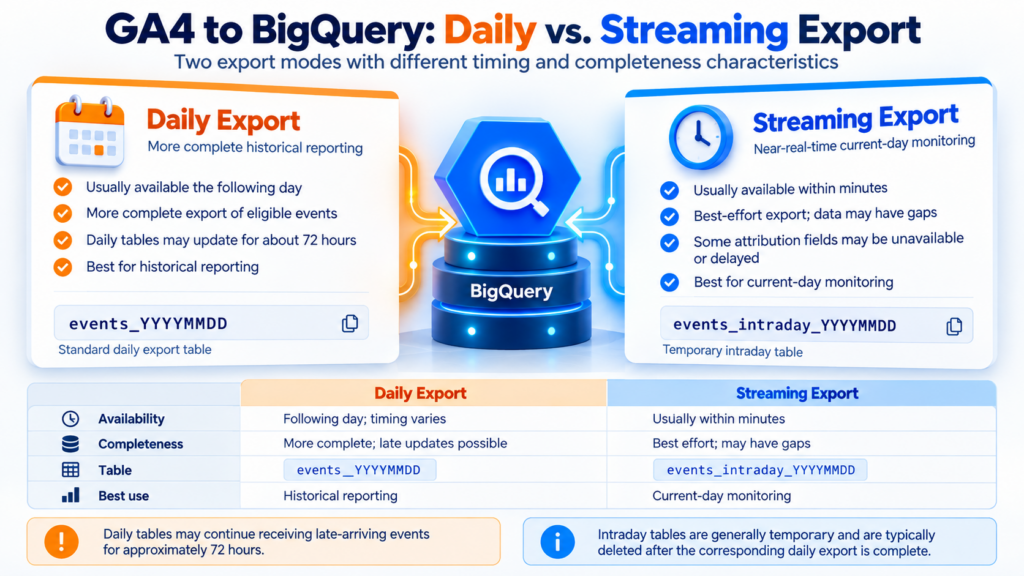
GA4 Daily export supports more complete historical reporting through events_YYYYMMDD tables, which can receive late-arriving updates. Streaming export provides near-real-time, best-effort data through temporary events_intraday_YYYYMMDD tables, with additional attribution limitations.
For many standard GA4 implementations, enabling Daily export first is the simplest dependable starting point.
Streaming can be added when the business genuinely requires current-day monitoring and has an appropriate billing configuration.
Google explains the trade-offs in BigQuery Export.
5. Understanding the GA4 BigQuery Event Schema
Once data begins arriving, GA4 creates a dataset and a series of export tables in the linked Google Cloud project.
The dataset is typically named using the format:
analytics_123456789The numbers represent the Analytics property identifier used in the dataset name.
Daily and Intraday Tables
Common table names include:
events_20261001
events_20261002
events_20261003

events_intraday_20261004
The events_YYYYMMDD tables contain daily event exports.
The events_intraday_YYYYMMDD tables are temporary current-day tables associated with streaming export and are generally removed after the corresponding daily export is completed.
The exact tables available depend on the export modes enabled and whether those exports have run successfully.
Important Exported Fields
Unlike a flat spreadsheet, GA4’s BigQuery export contains nested and repeated records.
Some of the most useful fields include:
event_date: The event date in the GA4 property’s reporting time zone, represented asYYYYMMDD.event_timestamp: The recorded event timestamp in microseconds.event_name: The event identifier, such aspage_view,generate_lead, orpurchase.user_pseudo_id: A pseudonymous identifier where available; it is not a guaranteed cross-device person identifier.user_id: An optional organization-assigned identifier for authenticated users, where properly implemented.event_params: Repeated records containing collected event parameter names and values.ecommerce: Ecommerce data associated with relevant events.traffic_source: First-user acquisition information where available.collected_traffic_source: Collected traffic-source information, including relevant campaign parameters and click identifiers.session_traffic_source_last_click: Session-scoped last-click attribution information in supported exports.
The parameter named ga_session_id is commonly found within event_params, rather than existing as a separate top-level column.
In SQL, repeated event parameters are accessed using the UNNEST operator.
Google maintains the detailed field definitions in its BigQuery Export schema documentation.
First-User, Session, and Event Acquisition Data Are Different
Traffic-source dimensions are particularly easy to misinterpret.
For example, traffic_source.source describes first-user acquisition information where available. It should not automatically be interpreted as the source of every later session or key event.
For session-level investigation, review fields such as session_traffic_source_last_click where populated and appropriate.
For raw campaign identifiers, inspect the relevant collected traffic-source fields.
These concepts relate to different analytical scopes, as discussed throughout the earlier GA4 guides.
Using a first-user acquisition dimension to explain every subsequent conversion can create misleading attribution conclusions even when the SQL query itself runs successfully.
6. Writing Your First GA4 BigQuery SQL Queries
The most practical way to learn the export schema is to examine a small, explicitly defined reporting period.
BigQuery uses GoogleSQL, which supports familiar operations such as filtering, grouping, aggregation, joins, and common table expressions.
The examples below are designed for GA4 daily export tables.
Before running them: Replace the sample project ID and dataset name with the identifiers from your own BigQuery environment, and select dates for which the required daily tables exist.
Query 1: Count Important Events by Date
The first example counts two event types across a selected date range.
SELECT
  event_date,
  event_name,
  COUNT(*) AS recorded_events
FROM
  `YOUR_PROJECT.analytics_123456789.events_*`
WHERE
  _TABLE_SUFFIX BETWEEN '20261001' AND '20261007'
  AND event_name IN ('generate_lead', 'purchase')
GROUP BY
  event_date,
  event_name
ORDER BY
  event_date,
  event_name;
This query returns the recorded number of matching exported event rows for each day.
It does not automatically reproduce GA4’s key-event attribution totals or the number of unique completed business transactions.
For example, if an implementation sends the same lead event twice, both rows may be counted unless the data is cleaned or deduplicated using a reliable event-level identifier.
Likewise, an event name alone does not establish that the event has been designated as a key event in the GA4 interface.
Why the Date Filter Matters
GA4 daily exports use date-suffixed tables.
The special _TABLE_SUFFIX expression allows a wildcard query to restrict which date-specific tables are scanned.
Without an appropriate table-range restriction, queries may scan substantially more exported data than necessary.
That can increase processing time and BigQuery query costs.
Query 2: Inspect Session and Page Parameters
The second example demonstrates how event parameters are extracted from GA4’s nested schema.
SELECT
  event_date,
  TIMESTAMP_MICROS(event_timestamp)
    AS event_time_utc,
  user_pseudo_id,
  (
    SELECT ep.value.int_value
    FROM UNNEST(event_params) AS ep
    WHERE ep.key = 'ga_session_id'
    LIMIT 1
  ) AS ga_session_id,
  (
    SELECT ep.value.string_value
    FROM UNNEST(event_params) AS ep
    WHERE ep.key = 'page_location'
    LIMIT 1
  ) AS page_location
FROM
  `YOUR_PROJECT.analytics_123456789.events_*`
WHERE
  _TABLE_SUFFIX BETWEEN '20261001' AND '20261007'
  AND event_name = 'page_view'
ORDER BY
  event_timestamp
LIMIT 100;
The query reads selected page-view events and retrieves their session identifier and page URL when those parameters are present.
The use of TIMESTAMP_MICROS converts GA4’s microsecond timestamp into a standard BigQuery timestamp.
The extracted timestamp is displayed in UTC unless explicitly converted for another time zone.
Do not assume that every row contains every expected parameter. Collection method, consent state, platform, and implementation details can affect field availability.
Important: LIMIT Does Not Necessarily Reduce Query Costs
The LIMIT 100 clause in Query 2 restricts the number of rows returned.
However, it does not necessarily reduce the amount of source data BigQuery scans or the resulting query cost.
For ordinary non-clustered tables, BigQuery may still need to process the full set of relevant input data before producing the requested rows.
To control processing costs, use:
- Restricted table-date ranges with
_TABLE_SUFFIX. - Explicit column selection rather than unnecessary
SELECT *queries. - Query cost estimates before execution.
- Maximum bytes billed where appropriate for on-demand query pricing.
- Pre-aggregated reporting tables for repeated analytical workloads.
These queries are starting points for understanding exported records, not guaranteed replicas of GA4’s standard interface metrics.
Google publishes additional examples in Basic queries for Google Analytics event data export.
7. Connecting GA4 Events with CRM and Customer Records
One of BigQuery’s most useful capabilities is combining Analytics event data with separately maintained business records.
For a lead-generation organization, the website might record a successful consultation request while its CRM maintains subsequent qualification, sales, and customer status information.
The warehouse can help analyze these stages together, provided that an appropriate, lawful, and reliable relationship between the datasets exists.
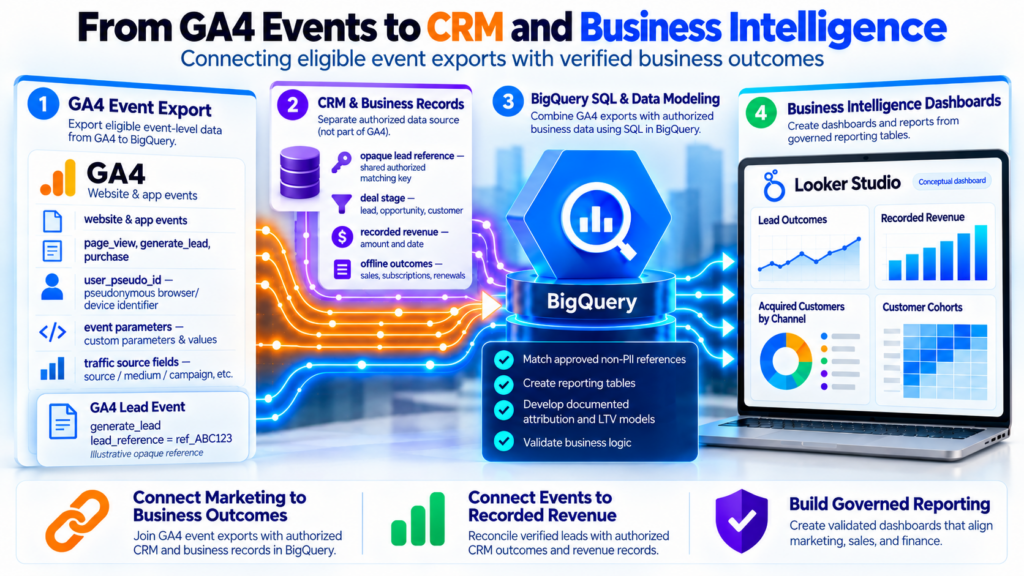
BigQuery can connect eligible GA4 event exports with separately maintained CRM records using authorized matching references. Validated SQL transformations support analysis of recorded revenue, customer outcomes, attribution models, and business intelligence dashboards.
Establish a Reliable Matching Key
A SQL join requires a common value that identifies the intended relationship between records.
Potential approaches include:
- Authenticated user identifiers: An appropriately configured, non-personally identifiable
user_idcan support authorized analysis involving signed-in users. - Opaque lead references: A random, non-personally identifiable lead reference can connect a verified website lead event with the corresponding CRM record.
- Transaction identifiers: A controlled transaction reference can support purchase-to-order reconciliation.
A browser-generated user_pseudo_id is not automatically equivalent to a CRM customer ID.
It can be unavailable, can change, and does not guarantee that separate devices or browsing sessions belong to the same person.
Do not attempt to manufacture deterministic identity matches where the required evidence does not exist.
Protect Identifiers and Personal Information
Google Analytics policies prohibit the collection of personally identifiable information such as email addresses, names, and other prohibited identifiers.
Use appropriately generated pseudonymous identifiers when linking Analytics events with authorized warehouse records.
If the CRM stores identifiable customer details, those details should remain in a separately governed system or restricted dataset with suitable access controls.
Joining two datasets inside BigQuery does not authorize sharing sensitive information with GA4 or make the combined records exempt from privacy requirements.
Follow applicable consent, lawful-processing, retention, and access requirements before implementing identity-related analytics.
Example: Connecting Verified Lead Events to CRM Outcomes
Suppose the website generates an opaque reference when a consultation request is successfully accepted.
The same reference is retained in the CRM, allowing the warehouse to associate a recorded generate_lead event with the corresponding business record.
The SQL below illustrates a possible join.
Example Schema Assumptions
- The GA4
generate_leadevent contains a string parameter namedlead_reference. - Every reference identifies one logical lead rather than one arbitrary page interaction.
- The example CRM table contains one current row per lead reference.
- The CRM columns are named
lead_ref,status, andrealized_revenue. - The revenue field contains numerical amounts recorded consistently in a single reporting currency.
- Refunds, adjustments, duplicate opportunities, and other financial corrections have been handled in the CRM reporting data.
These names and assumptions describe a hypothetical reporting schema. They must be adapted to the actual business system before the query can be executed.
WITH ga4_leads AS (
  SELECT DISTINCT
    (
      SELECT ep.value.string_value
      FROM UNNEST(event_params) AS ep
      WHERE ep.key = 'lead_reference'
      LIMIT 1
    ) AS lead_ref
  FROM
    `YOUR_PROJECT.analytics_123456789.events_*`
  WHERE
    _TABLE_SUFFIX BETWEEN '20261001' AND '20261007'
    AND event_name = 'generate_lead'
),

valid_leads AS (
  SELECT lead_ref
  FROM ga4_leads
  WHERE lead_ref IS NOT NULL
)

SELECT
  COUNT(*) AS leads_with_reference,

  COUNTIF(c.lead_ref IS NOT NULL)
    AS matched_crm_leads,

  COUNTIF(c.status = 'won')
    AS acquired_customers,

  COALESCE(
    SUM(
      IF(
        c.status = 'won',
        COALESCE(c.realized_revenue, 0),
        0
      )
    ),
    0
  ) AS recorded_won_revenue

FROM valid_leads AS g

LEFT JOIN
  `YOUR_PROJECT.reporting.crm_leads` AS c

ON g.lead_ref = c.lead_ref;
This example counts exported lead references, the number matched to the example CRM table, the number recorded as won customers, and the revenue supplied by the CRM for those won records.
The LEFT JOIN retains GA4 lead references that do not have a matching CRM record.
The COALESCE expression ensures that the revenue measure returns zero rather than a null value when no qualifying revenue exists.
Prevent Duplicate Customers and Revenue
For the query to produce the intended results, the CRM table must contain only one current record for each lead_ref.
Real CRM systems often maintain multiple rows for the same lead, including status histories, multiple opportunities, or repeat transactions.
Joining GA4 events directly to those records without preparing the CRM data can multiply rows and overstate customer counts or revenue.
Before using joined financial results:
- Confirm that each matching key has the intended uniqueness.
- Determine whether multiple opportunities can belong to one lead or customer.
- Reconcile transactions, refunds, and revenue adjustments.
- Convert or separately report monetary values recorded in different currencies.
- Document whether revenue represents recognized sales, booked contracts, payments received, or another financial measure.
- Validate a sample of joined records against the original CRM or transaction system.
If the source contains multiple records per lead, prepare a suitable deduplicated or aggregated reporting table before performing the join.
A syntactically valid join is not necessarily a financially valid reconciliation.
What the Joined Results Actually Establish
A successful join establishes an analytical relationship between the exported lead event and the corresponding CRM record.
It does not automatically prove that a particular advertisement caused the customer to purchase.
Nor does a single closed sale establish the customer’s lifetime value.
For lifetime-value analysis, additional assumptions or observed records may be necessary, including repeat purchases, refunds, customer tenure, and profit contribution.
BigQuery can improve reconciliation between recorded website actions and actual customer outcomes. The validity of that analysis depends on the matching key, the business data, and the attribution methodology.
8. Building Custom Attribution and Acquisition Analyses
BigQuery allows analysts to implement their own attribution rules over exported data.
For example, an organization might compare first-observed acquisition source, last-observed eligible marketing interaction, and the source associated with a particular session.
Those questions require different fields and potentially different SQL transformations.
Use the Correct Traffic-Source Scope
Before writing a custom attribution query, establish whether the analysis concerns:
- First-user acquisition: The source associated with the user’s initial observed acquisition.
- Session acquisition: The marketing context assigned to a particular observed session.
- Key-event reporting: How eligible marketing interactions receive credit for a measured outcome.
- Customer acquisition: Which verified customers can be associated with observed acquisition activity through an explicitly defined methodology.
BigQuery’s exported fields do not all describe the same scope.
Similarly, the GA4 interface may use modeled information, reporting identity features, and attribution processing not reproduced in the raw event export.
An analyst who applies a custom last-click rule to raw events should not expect the result to match every GA4 reporting metric automatically.
Attribution Is Not Incrementality
Attribution distributes reporting credit among observed interactions.
Incrementality asks whether those interactions caused additional business outcomes that would not otherwise have occurred.
These are different questions.
Even a sophisticated warehouse model cannot establish the causal effect of advertising from observed conversion paths alone.
Controlled experiments and other appropriate causal measurement methods may be needed to evaluate incremental return.
Understand the Missing Data
Custom attribution models must account for limitations such as:
- Visitors without usable persistent identifiers.
- Unobserved activity across devices or browsers.
- Consent-related measurement restrictions.
- Ad interactions that are not available in the event export.
- Offline interactions not captured by GA4.
- Incomplete or delayed export records.
- Incorrect or missing campaign parameters.
These limitations can materially affect model results.
They are not solved merely by switching from the GA4 interface to SQL.
A defensible custom attribution model should document its observed inputs, eligibility rules, lookback assumptions, excluded interactions, and known gaps.
9. Building Reporting Tables for Looker Studio and Other Dashboards
Once the export is available and the required business metrics have been defined, BigQuery can serve as the data source for a custom reporting environment.
Tools such as Looker Studio and Power BI can connect to BigQuery, subject to their respective connector capabilities and access requirements.
However, connecting a dashboard directly to unrestricted raw event tables is not always the best design.
Why Raw Event Tables Need a Reporting Layer
GA4 event exports contain repeated parameters and detailed rows intended for flexible analysis.
Every time a dashboard refreshes, a query against large raw event tables may need to read and aggregate significant volumes of data.
That can increase query costs and reduce dashboard responsiveness.
A better architecture is often to create reusable reporting tables that contain only the fields and aggregations required by the dashboard.
Examples include:
- Daily verified lead counts by selected acquisition dimensions.
- Completed purchases by reporting date.
- Qualified leads and customers reconciled from approved CRM records.
- Campaign-level costs from authorized advertising data sources.
- Acquisition efficiency metrics derived from validated costs and outcomes.
Workflow: Building the Reporting Layer
- Identify the business metrics the dashboard must display.
- Document the event names, acquisition dimensions, financial sources, and time periods required for each metric.
- Validate the underlying raw-event queries in BigQuery.
- Create an appropriate reporting dataset or schema for transformed outputs.
- Build scheduled queries, transformed tables, or suitable views using the verified logic.
- Confirm that each reporting table has a clearly documented grain, such as one row per day and campaign.
- Account for late-arriving GA4 events by refreshing an appropriate rolling date window.
- Test totals against the underlying source records and investigate discrepancies.
- Apply access restrictions appropriate to the reporting audience.
- In Looker Studio, create a report and add a BigQuery data source using the relevant table, view, or supported custom query.
- Configure the date ranges, charts, filters, and calculated fields required for the dashboard.
- Validate report refresh behavior, query performance, and resulting BigQuery costs.
Dashboard Metrics That Benefit from Warehouse Data
A custom reporting environment might include:
- Verified lead volume: Successfully recorded lead-generation outcomes.
- Qualified lead rate: The proportion of matched leads meeting the organization’s qualification criteria.
- Media-only customer acquisition cost: Relevant advertising expenditure divided by acquired customers under the documented measurement method.
- Customer acquisition cost: Broader acquisition expenses divided by acquired customers, where those expenses are available.
- Recorded customer revenue: Revenue reconciled from suitable transaction or CRM records.
- Customer lifetime value: A consistently defined historical or projected customer-value measure.
- Pipeline velocity: An organization’s defined measurement of how efficiently qualified opportunities progress through sales stages.
These metrics require different sources and definitions. None should be assumed to exist automatically in the raw GA4 event export.
Looker Studio Has Its Own Reporting Limits
Looker Studio can use BigQuery as a data source, including tables, views, and custom queries.
However, the BigQuery connector has its own limitations.
Google documents a maximum of two million returned rows per chart query through the connector.
A chart attempting to return more than this limit may display incomplete or truncated results.
This is an additional reason to aggregate high-cardinality event data in BigQuery before connecting it to a dashboard.
Dashboard queries are also subject to Google Cloud billing, quotas, permissions, and resource limitations.
Using a warehouse does not eliminate every reporting or visualization constraint; it moves much of the data-processing responsibility into a more configurable environment.
Google provides the connector procedure in Connect Looker Studio to Google BigQuery.
10. Controlling BigQuery Storage, Processing, and Export Costs
BigQuery can be cost-effective, but its billing model should be understood before exporting large volumes of Analytics data.
Costs can arise from data storage, SQL processing, streaming export, connected reporting workloads, and related cloud services.
Storage Costs
BigQuery charges for data stored in the warehouse after applicable free usage allowances.
Storage costs depend on the amount of data and the relevant storage billing model.
Retaining several years of event-level data may be inexpensive for a small website but substantially more costly for a high-volume property.
Query Processing Costs
Query charges depend on the chosen compute pricing model and the resources consumed.
Under on-demand pricing, data scanned by SQL queries is an important cost factor.
Repeatedly scanning years of event tables for a small dashboard metric can be unnecessarily expensive.
For this reason, query date restrictions, relevant column selection, and reusable reporting tables should be part of the warehouse design.
Streaming Export Costs
Streaming export can generate additional ingestion charges beyond ordinary storage and query processing.
Because streaming is not required for every analytics use case, enable it only when its benefits justify the cost and operational complexity.
BigQuery Free Usage and Sandbox Limits
Google Cloud provides free usage allowances for eligible BigQuery storage and query processing.
The sandbox allows users to experiment without a standard billing-account setup, but it has significant restrictions.
Under Google’s current sandbox documentation:
- The storage allowance is limited.
- Query processing is subject to a monthly free usage allowance.
- Tables, views, and partitions automatically expire after 60 days.
- Streaming and certain other operations are unavailable.
These restrictions make the sandbox useful for learning and testing, but unsuitable as an unrestricted, permanent warehouse.
For a durable production analytics implementation, confirm that the Google Cloud project has appropriate billing and retention settings.
Workflow: BigQuery Cost-Control Checklist
- Review the project’s billing account and current BigQuery pricing model.
- Establish a Google Cloud budget and appropriate billing alerts.
- Restrict wildcard SQL queries to the required table-date range.
- Select only the columns needed for the analysis.
- Use query dry runs or cost estimates before executing large investigations.
- Where appropriate, configure maximum bytes billed for on-demand queries.
- Use scheduled transformations or aggregated tables for repeated dashboard workloads.
- Limit unnecessary high-frequency dashboard refreshes.
- Review whether Streaming export is operationally necessary.
- Document dataset and table retention settings.
- Monitor storage growth, query usage, failed exports, and unexpected cost changes.
Billing alerts help operators identify unexpected usage, but they should not be mistaken for an automatic hard spending limit.
Likewise, applying LIMIT to a query should not be treated as a reliable billing safeguard.
Review the current BigQuery pricing documentation before selecting production settings.
11. Data Quality, Security, and Governance
Moving Analytics event records into a data warehouse creates additional opportunities for analysis, but also additional governance responsibilities.
The quality of the reporting system depends on more than whether the export is technically connected.
Verify Export Health
Check that new daily tables appear on the expected schedule.
Investigate missing dates, unexpected drops in event volume, and failures caused by permissions, billing, quotas, or changes to the Analytics configuration.
Standard properties approaching the daily event export limit should be monitored carefully.
Once data is missed because an export is paused or unavailable, a later successful connection should not be assumed to restore it.
Monitor Late-Arriving Events and Historical Updates
Production data pipelines should account for GA4’s daily export update window.
For example, a report generated from yesterday’s events may change when a late-arriving event is added to the corresponding daily table.
Scheduled transformations should therefore consider refreshing a suitable recent-date window rather than relying exclusively on one-time processing.
Organizations should also monitor the completeness and freshness of their reporting tables.
If the warehouse uses incremental SQL jobs, the update procedure must avoid accidentally duplicating records when recent partitions or dates are processed again.
Understand Why GA4 and BigQuery Totals Differ
The GA4 interface and BigQuery export can produce different figures even when both systems are functioning as designed.
Possible reasons include:
- GA4 reporting identity and modeled data.
- Differences between raw events and attributed key-event metrics.
- Consent-related data collection limitations.
- Different user and session calculation methods.
- Missing identifiers and incomplete event parameters.
- Intraday versus daily exports.
- Reporting time-zone differences.
- Late-arriving event records.
- Data thresholds, aggregation, or sampling in particular GA4 reports.
Do not automatically treat the BigQuery result as the only correct number or the GA4 interface result as erroneous.
Determine whether the two systems are answering the same question using comparable definitions.
Implement Least-Privilege Access
Not every dashboard user needs access to the underlying raw event data or CRM records.
Use Google Cloud IAM permissions and, where appropriate, separate datasets and restricted reporting views.
For example, executives may need aggregated customer acquisition metrics without needing permission to read individual lead references or underlying CRM records.
Access should be granted according to actual responsibilities rather than convenience.
Manage Retention and Deletion
Organizations should document how long they retain exported data and how required deletion requests are handled across all affected systems.
Deleting information in one source system should not automatically be assumed to delete every independently retained copy in the warehouse.
BigQuery retention, downstream reports, backups, and derived datasets may require their own deletion and governance procedures.
Workflow: Production Warehouse Validation
- Verify the GA4 property and Google Cloud project relationship.
- Check that the BigQuery export resource identity has the required permissions.
- Confirm that the expected data streams and events are included in export.
- Check the presence and freshness of daily event tables.
- Monitor daily event volume and applicable export limits.
- Allow for late-arriving event updates when preparing historical reporting tables.
- Validate representative events and parameters against the implemented measurement specification.
- Confirm that business identifiers contain no prohibited personal information.
- Investigate unmatched CRM records before interpreting joined financial results.
- Validate CRM key uniqueness and the treatment of currencies and revenue adjustments.
- Review transformed reporting tables for duplicated or omitted records.
- Confirm dataset permissions, retention settings, and billing controls.
- Document the methodology used for every important dashboard metric.
A production analytics warehouse should be evaluated as an ongoing data system, not a one-time export configuration.
12. A Practical Roadmap for Building Your BigQuery Command Center
Organizations do not need to construct a complex data warehouse on the first day.
A staged approach makes it easier to validate measurement quality, control costs, and avoid implementing elaborate reporting models before the necessary data exists.
Phase 1: Establish the Export
Connect the intended GA4 property to a correctly configured Google Cloud project.
Enable Daily export, verify billing and permissions, and confirm that event tables arrive successfully.
Document the property, project, dataset, export modes, data location, and export resource identity.
Phase 2: Validate the Raw Event Data
Run simple event-count queries for a short date range.
Inspect the event schema, verify the important event names and parameters, and compare selected findings with GA4 while accounting for reporting differences.
Do not proceed directly to customer acquisition reporting until the basic event definitions have been validated.
Phase 3: Develop Business Transformations
Create documented SQL transformations for important metrics such as verified leads, purchases, and selected acquisition dimensions.
Establish consistent rules for deduplication, event time, reporting date, and applicable attribution scopes.
Account for late-arriving records and ensure that repeated processing does not create duplicate reporting rows.
Test the results using known source records where possible.
Phase 4: Integrate Authorized Business Data
Identify suitable CRM or transaction datasets and establish lawful matching procedures.
Measure the proportion of records that can be matched reliably before interpreting customer outcomes.
Validate the uniqueness of matching identifiers and reconcile currencies, transaction adjustments, and customer status definitions.
Document the difference between observed conversions, matched customers, and estimated customer value.
Phase 5: Build the Reporting Environment
Create reporting tables suitable for the intended audience.
Connect Looker Studio or another supported reporting tool and build dashboards around explicitly defined business questions.
Account for connector limits and avoid unnecessarily returning millions of raw rows to visualization tools.
Monitor query usage, data freshness, permissions, and quality over time.
Phase 6: Expand Only When the Data Supports It
Once the foundational system is reliable, consider advanced work such as:
- Multi-year customer cohort analysis.
- Historical customer acquisition comparisons.
- Custom channel attribution investigations.
- Revenue reconciliation and retention analysis.
- Documented customer lifetime-value models.
- Controlled measurement experiments combined with warehouse reporting.
These capabilities are most valuable when the organization has the event quality, business records, expertise, and governance procedures needed to support them.
The BigQuery Command Center: From Analytics Reporting to Governed Data Intelligence
Google Analytics 4 offers a practical reporting environment for understanding website and app activity. BigQuery extends that environment by making successfully exported event records available for custom SQL, independently maintained history, and appropriately governed integrations with other business datasets.
The advantages are significant, but they should be interpreted accurately.
BigQuery does not automatically recover missing historical events, reproduce every modeled GA4 report, identify every visitor, or establish the causal contribution of every marketing interaction.
Its value comes from allowing an organization to define, inspect, document, and maintain analytical methods that would be difficult to implement using the standard reporting interface alone.
With reliable event tracking, controlled identifiers, appropriate cloud permissions, validated SQL transformations, and a sustainable reporting architecture, BigQuery can become a powerful foundation for long-term analytics.
The objective is not unrestricted access to perfect data. It is greater control over the data you can legitimately collect, retain, verify, and use to make informed decisions.
Series Complete: The BigQuery Command Center concludes our eight-part Google Analytics technical guide, covering GA4 fundamentals, website friction, measurement performance, enhanced measurement, event schemas, organic search analysis, advertising ROI, and custom data warehousing.
Continue exploring the series with Post 7 — The Advertising ROI Handbook or Post 6 — Linking Keyword Queries to Conversion Actions in GA4.